Can a single tool truly keep an international student organized across time zones and deadlines?
Managing study life while living abroad is a challenge. Many students juggle lectures, research, and group work across different clocks and platforms. A smart app can change how you collect and review notes, sync files, and plan study sessions.
The right platform makes research easier and keeps lecture material in one place. Integration between phone, tablet, and laptop stops progress from stalling when hardware fails. Good tools also help students keep schedules tidy and reduce stress.
In this guide, we will compare top options and show which app fits common study styles. You will learn which features speed study sessions, how to organize notes, and how to take notes quickly during live classes.
Why Choosing the Right Note-Taking App Matters
Picking the right study platform early saves months of hassle later.
Choosing a single note-taking app in freshman year prevents a painful migration later. When students consolidate materials from day one, their files grow into a searchable archive that truly helps during busy semesters.
Research shows the right system compounds in value over four years. A consistent setup makes study sessions faster and keeps lecture content from fragmenting across devices.
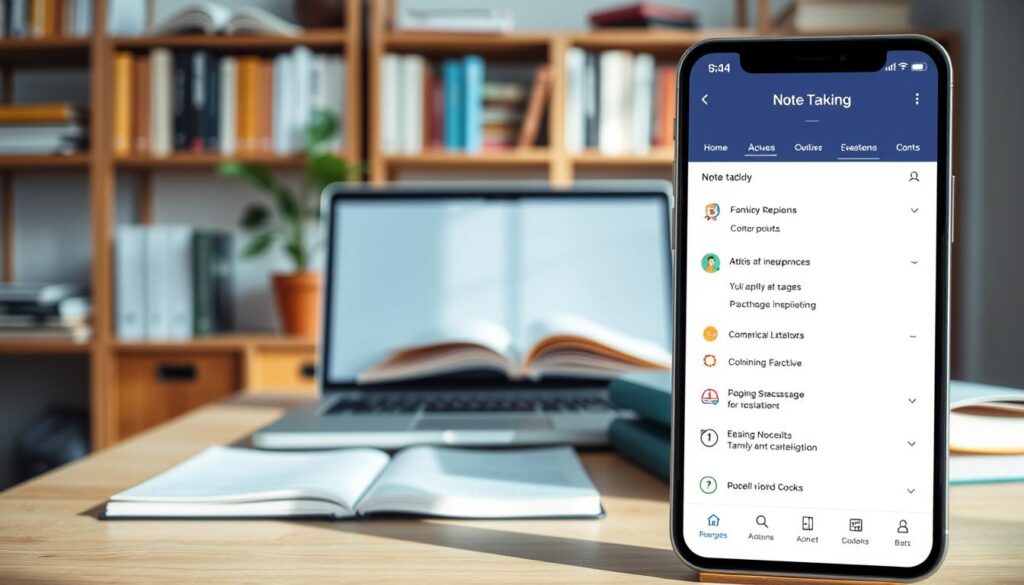
Picking the wrong tools can create serious obstacles when you need to pull examples in an interview or finish a major project. A dependable platform acts as a central repository and reduces the chance of losing critical lecture data.
- Start early to avoid migration headaches.
- Choose software that adapts as needs evolve.
- Prioritize reliability so retrieval is simple during job searches.
In short, the best app is one that fits your workflow, keeps notes organized, and grows with your academic life.
Essential Criteria for Note Taking Apps for Digital Exchange Courses
Great study systems start with reliable access no matter where you are.
Accessibility and Syncing
Reliable software must sync across desktop and mobile so students can open notes on any device. Fast synchronization prevents file conflicts and keeps group work moving.

Look for an app that offers simple editing and sorting. A clean interface speeds review and research without a steep learning curve.
Offline Functionality
Offline access is mandatory when Wi‑Fi drops during travel or late-night study sessions. Your chosen tool should let you edit, save, and later sync changes automatically.
“Choose software that works the same way at a cafe as it does in a library.”
Finally, weigh cost against advanced features. Some services charge subscriptions; value matters more than brand. Pick a workflow that keeps school work organized and supports long-term research goals.
Microsoft OneNote for Versatile Free Note Taking
OneNote pairs a ringbinder layout with AI tools to speed review and editing.
Microsoft OneNote provides a generous free personal plan that includes 5GB of storage for all your notes and media. The ringbinder model organizes content into notebooks, sections, and pages. This makes it easy for students to keep material by course or class.
OneNote is available on Windows, macOS, iOS, and Android. That cross-platform support keeps work synced across devices. You can insert text, handwriting, and audio recordings to capture lectures or ideas.
Integration with OpenAI Copilot helps summarize and edit text inside a notebook. Use Copilot to shorten long pages, draft study plans, or generate quick outlines.
| Feature | What it does | Why it helps students |
|---|---|---|
| Storage | 5GB free personal | Enough to keep lecture notes and small media files |
| Structure | Notebooks → Sections → Pages | Keeps research and class material in one place |
| Media | Audio recordings and handwriting | Capture lectures and handwritten writing with search |
| AI | Copilot (OpenAI) | Summarizes text and speeds editing |
Apple Notes for Seamless Ecosystem Integration
If you use Apple hardware, Apple Notes often feels like a natural extension of your study routine.
Apple Notes is built into macOS and iOS, so setup is minimal and syncing is automatic. This native app helps students keep quick ideas and longer research in one place.
The app supports Markdown, tags, and powerful search. Those features make it simple to sort and find notes across many classes and projects.
Users can record audio directly into notes and get live transcripts to aid lecture review. Apple Intelligence can generate images and rewrite text to speed editing, even if it is not the most advanced AI on the market.
iCloud sync keeps content available across iPhones, iPads, and Macs. That smooth integration is a practical way to cut friction when switching devices during study sessions.
“A native tool that just works across all your Apple hardware can be the difference between chaos and a clean study flow.”
Google Keep for Quick Capture and Syncing
Google Keep shines when you need to capture an idea in seconds and move on.
Keep is a lightweight note-taking app built around fast capture. Students can create cards, checklists, and voice memos without opening a heavy editor.
Google offers 15GB of free personal storage shared across Gmail, Drive, and Photos. That makes Keep efficient for users who already rely on Google services.
The sidebar integration with Gmail, Docs, and Drive keeps quick items close to your workflow. Location-based reminders make sure a saved idea appears when you arrive at a study place.
| Feature | What it does | Why students benefit |
|---|---|---|
| Storage | 15GB shared | Holds many notes and small media across Google services |
| Audio | Automatic transcription | Saves time when reviewing spoken ideas |
| Interface | Card-based layout | Fast capture during a busy class or study session |
Keep works best as a capture layer in a larger study plan. Use it to grab ideas, voice memos, or short text and then move longer research into a more structured app.
Notion for Collaborative Study Systems
Notion blends outlines, tasks, and reference pages into a single, study-ready workspace.
Students can build a central hub where syllabus items, links, and files live in one place. The block-based editor lets you insert text, images, embeds, and databases on any page.
Building Databases
Create custom databases to track readings, project milestones, and research. Use templates to spawn consistent pages for each class or project.
Team Collaboration
Real-time sharing and comments make group work smoother. Integrations with Google Drive and external tools pull files into a unified study system.
“Notion turns scattered content into a searchable, reusable knowledge base.”
| Feature | Benefit | Best use |
|---|---|---|
| Databases | Structured records with filters | Track readings, tasks, and summaries |
| Blocks | Modular pages you can rearrange | Build templates and repeatable pages |
| Collaboration | Live edits and comments | Group projects and peer review |
Notion offers a free Personal Pro plan for eligible students. Use it to centralize research, templates, and quick summaries so study work stays in one place.
Drawboard PDF for Technical and Scientific Workflows
When engineering sketches and complex diagrams meet tight deadlines, the right PDF editor changes everything.
Drawboard PDF is a focused note-taking app built for precision. It scores highly on G2 (4.3/5), making it popular with engineering and architecture students.
The app offers pressure-sensitive inking and smart shape recognition. These features make annotating diagrams and equations feel like writing on paper.
Users can pin audio recordings to exact spots in a file. That lets you replay a lecture segment while viewing the related content. It speeds review and helps retain context.
Real-time multi-user markup supports teamwork without swapping files. Teams can edit the same document and see changes live, which tightens collaborative workflow during a class or project.
- Highly rated on G2 (4.3/5) — trusted by many students.
- Pressure-sensitive ink and smart shapes — ideal for technical writing.
- Pin audio and recordings to content — better lecture review.
- Real-time markup and cross-device sync (Windows, macOS, iOS, Android) — keeps research available on all devices.
GoodNotes for Handwriting and iPad Users
GoodNotes brings a paper-like pen experience to Apple devices while adding search and export power.
GoodNotes holds a 4.8/5 rating on G2, showing it resonates with students who prefer writing by hand. The app merges handwritten text, typed text, and diagrams on a single, customizable page. This keeps ideas and sketches together without extra file juggling.
Searchable Handwriting Features
Handwritten content in GoodNotes is fully searchable. The software scans ink and finds words just like typed text. You can also convert ink to typed text for easy export into other study tools.
- Templates: lined, grid, planner pages to match each class plan.
- Ink conversion: turn handwriting into clean text for reports and sharing.
- Cross-platform sync: optimized on iPads and Macs; subscription syncs with Windows and Android.
| Feature | How it helps | Best use |
|---|---|---|
| Searchable handwriting | Find phrases inside handwritten pages | Quick review before exams |
| Ink-to-text | Convert writing to editable text | Export outlines and essays |
| Templates | Structured pages for study | Lecture notes, planners, problem sets |
Notability for Audio-Synced Lecture Reviews
Notability turns lecture recordings into an active study tool by linking audio to your written work.
Designed mainly for iPad and Mac users, this note-taking app records class sessions while you write. Tap any word in your notes to hear the exact audio recorded at that moment. That makes review faster and more precise for difficult topics.
An AI suite creates summaries, flashcards, and quick quizzes from handwritten or typed content. These automated study helpers save time when exams loom.
Organize material into subject folders so students can find key items during cramming. Notability also supports PDF annotation and math equation tools, which suit STEM workflows.
- Smooth recording sync on apple devices and Macs.
- Tap-to-play audio linked to exact words in your notes.
- AI-generated summaries and flashcards to speed review.
- PDF markup and equation support for structured content.
Evernote for Managing Complex Research Projects
When projects grow messy, Evernote turns scattered files and web articles into an organized research center.
Evernote lets students save web articles, lecture notes, and research papers into a centralized, searchable notebook system. The platform makes it easy to pull citations, PDFs, and audio clips into one place so research moves faster.
The free plan is limited to 50 notes, a single notebook, and one device. That cap nudges heavier users to upgrade when a long-term project needs more storage and sync across devices.
“Centralized search saves hours during research.”
AI tools like AI Edit and AI Transcribe create quick summaries and transcribe recordings. Calendar integration helps students align deadlines and study plans with saved content.
- Save web clips, PDFs, and recordings into searchable notebooks.
- Flexible tagging and advanced search handle large volumes of files.
- AI summaries speed review and transcription captures audio from lectures.
Use Evernote when you need a single app that keeps ideas, plans, and support materials together while you focus on the work.
Joplin for Privacy and Markdown Enthusiasts
Joplin gives students a private, text-first workspace that runs even without internet.
This open-source, offline-first app puts privacy and data security first. It supports Markdown, so writing stays structured and portable across tools.
Users can sync via Joplin Cloud, Dropbox, or WebDAV. Optional end-to-end encryption keeps files safe during synchronization between devices.
Attachments like images, audio, and PDFs open inside the notebook. That means one place holds research clips, lecture audio, and reference files without juggling formats.
- Open-source and offline-first design that prioritizes privacy and control.
- Markdown support for clean, exportable writing and structured notes.
- Secure sync options (Joplin Cloud, Dropbox, WebDAV) with end-to-end encryption.
- Attach images, audio, and PDFs and view them inside the app.
- Plugin ecosystem adds web clippers, advanced tags, and workflow extensions.
Leveraging AI Tools to Enhance Your Study Workflow
AI now helps students turn long lecture transcripts into concise study guides in minutes.
Start with transcripts from recorded lectures or audio. Microsoft Copilot and Google Gemini can summarize long blocks of text into short, focused summaries. These summaries make review faster and highlight key concepts to add to your study plan.
Summarizing Lecture Transcripts
Upload class audio or raw transcripts and ask an AI to extract main points. The result is a tight summary you can read before exams. This saves time and reduces cognitive load when juggling multiple classes.
Generating Flashcards
Advanced models can convert summaries and text into spaced-repetition flashcards. Use generated prompts to create quick quizzes and improve retention. Flashcards based on AI summaries speed review sessions and boost recall.
Organizing Research Sources
AI also links references, web clips, and PDFs to a primary page. Notion’s AI can pull action items and sync them with databases and templates. That keeps research structured and searchable across your study stack.
“AI tools turn hours of raw lecture content into usable study material.”
| AI Feature | Example | Student benefit |
|---|---|---|
| Transcript summarization | Microsoft Copilot, Google Gemini | Fast summaries for quick review |
| Flashcard generation | AI-generated Q&A from text | Efficient spaced-repetition study |
| Source linking | Notion AI with databases | Organized research and action items |
Many modern tools include AI-powered search that finds exact phrases across your database. Use these features to build a study flow that cuts review time and keeps content usable across devices.
Balancing Handwriting and Typing for Better Retention
A hybrid writing strategy often gives better recall than typing alone.
A 2025 review in PMC shows that writing by hand engages more motor and cognitive regions than typing. Typing lets students capture more text. Handwriting forces summarizing, which helps long-term memory.
Many students adopt a mixed workflow. They use a stylus on a tablet to write by hand and a keyboard to draft outlines. This way, handwritten summaries boost recall while typed outlines speed review.
| Method | Strength | Best use |
|---|---|---|
| Handwriting | Engages motor memory and forces synthesis | Review and recall after class |
| Typing | Captures high volume fast, easy to edit | Lecture capture and rapid outlines |
| Hybrid | Combines memory benefits with searchability (OCR) | Stylus notes + searchable archive in GoodNotes or Notability |
Use handwriting during initial learning and switch to typed summaries when you prepare to study. This simple mix improves retention and keeps your study work efficient.
Managing Privacy and Data Security During International Studies
When you study across borders, protecting classmates’ privacy becomes as important as organizing study materials.
FERPA requires care when storing peer-review feedback or group transcripts in commercial services. Keep graded peer work inside school systems like Canvas or Blackboard to stay compliant.
Personal study notes are usually not education records under FERPA. Still, avoid sharing sensitive data and get consent before saving or distributing group material.
Most reputable platforms, including Notion and Apple Notes, state user content is not used to train outside AI models. That reduces one exposure risk, but privacy policies vary. Read them before you upload lecture audio that captures other voices.
- Store graded peer work on institutional systems to meet policy rules.
- Confirm a platform’s data-use statements before syncing group recordings.
- Limit shared files and anonymize sensitive details when possible.
“When in doubt, default to the campus LMS for any work tied to grades or official reviews.”
How to Build Your Ideal Digital Study Stack
Designing a lean set of tools helps students turn scattered files and ideas into a repeatable study routine.
Start with three roles: one capture app for lectures, one source app to store PDFs and research, and one recall tool for flashcards and review. This trio keeps content organized and searchable across devices.
Many students use Notion as a central hub. Notion can hold templates, databases, links, and a notebook page that pulls files into one place. Use it to map a semester plan and sync task lists with class timelines.
Choose tools to match your major. STEM majors may need handwriting and PDF markup. Humanities students often favor synthesis and longer-form research. Build a workflow that fits how you study.
- Capture lectures quickly, then move full files to a source app.
- Store PDFs and references where they are easy to search.
- Use a recall app to turn summaries into flashcards for review.
Start with free options like OneNote or Apple Notes and evolve the stack as school needs change. A steady system compounds value across four years of study and research.
Conclusion
A consistent workflow can turn scattered files into a dependable study archive.
Selecting the right set of tools is a foundational step for any student studying abroad in 2026. Pick one reliable app for capture and another to store references, then add a recall layer for review.
Notion stands out as an all‑in‑one workspace that merges notes, tasks, and collaboration in one place. Prioritize platforms that sync well and offer offline access so work continues across time zones and weak Wi‑Fi.
Balance handwriting with typed summaries to boost memory while keeping searchable archives. Start early — a steady study stack compounds value and becomes a lasting resource through your degree.