
Ever wondered how some students juggle time zones, deadlines, and live lectures without missing a beat? That question sits at the heart of every international program. You need a simple system that keeps tasks in view and reduces stress.
Students often lose focus when schedules clash. A reliable calendar app makes it easier to track due dates and sync meetings across regions. The right tool helps you balance study time with life and career goals.
In this article, we review the best calendar choices and show how to shape a routine that fits semester demands. Expect practical tips on setup, time-zone tricks, and features that boost productivity. By the end, you’ll know which app matches your workflow and how to stay consistent while studying abroad.
Why Time Management Matters for Digital Exchange Courses
When classes span time zones and deadlines stack up, effective planning becomes the student’s superpower. Good time management turns scattered obligations into a clear weekly plan.
A simple system helps you protect study time and personal life.
The humble calendar acts like a budget for your most valuable resource: your time. Use it to block study sessions, tag important events, and set reminders for group meetings.
Balancing academic deadlines is easier when you visualize tasks and due dates in one view. Seeing upcoming assignments helps you break big projects into smaller steps and avoid last-minute rushes.
Balancing Academic Deadlines
Map major assessments and weekly tasks. Prioritize work by deadline and effort, then assign short blocks to each item. This keeps momentum without overload.
Coordinating Global Time Zones
Coordinating meetings across regions needs a robust scheduling tool that auto-adjusts local times. Always confirm the meeting time and add a quick note with your local zone to avoid confusion.
“Protect your time as you would protect your grades.”

Essential Features to Look for in Calendar Apps
A fast, clear scheduling interface makes planning feel easy. Choose an app that lets you add events in one or two taps. Quick entry reduces friction and keeps your day accurate.
Look for multi-calendar support and sync across devices so you can view work, school, and personal plans together. That way you avoid double-booking and stay on top of shifting time zones.
Customization matters. Color tags, compact views, and smart reminders help you arrange tasks and events in a way that fits your workflow.
Sharing and simple invites speed group work. Pick tools that let teammates RSVP, suggest times, and see overlapping schedules without extra steps.
- Fast event entry and minimal clicks
- Sync across phones, tablets, and web
- Custom views, tags, and reminder options
- Time zone support and overlap handling
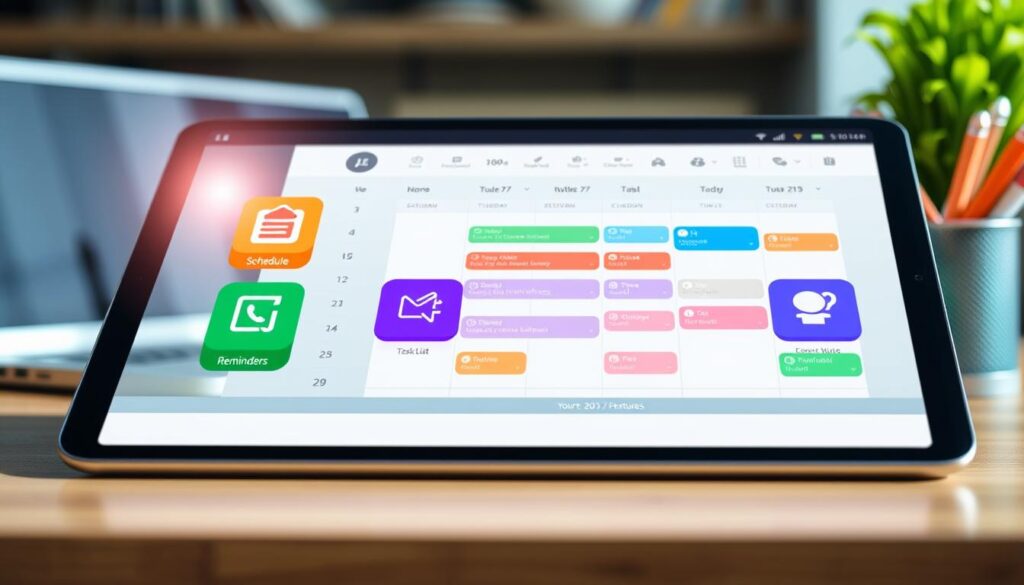
Top Calendar Apps for Digital Exchange Courses
Picking the right scheduling tool can turn chaotic weeks into calm, productive routines.
Start by testing a few popular options to see which calendar app fits your study style. Look for fast entry, clear day views, and reliable sync across devices.
Many students prefer a balance between power and simplicity. A good app gives quick reminders, color tags, and easy sharing so group work stays on track.
Invest time up front to find the best calendar that matches your needs. Once set, it becomes the hub for assignments, meetings, and personal plans, improving time management and reducing stress.
| Name | Strength | Best use | Platforms |
|---|---|---|---|
| Google Calendar | Team sharing | Group scheduling | Web, iOS, Android |
| Microsoft Outlook | Enterprise sync | Email + schedule | Windows, iOS, Android |
| Fantastical | Design & speed | Quick entry | macOS, iOS |
| Calendly | Meeting automation | Booking slots | Web, iOS, Android |
Google Calendar for Seamless Team Collaboration
A shared schedule that updates instantly cuts wasted messages and missed calls.
Google Calendar is a cloud-based scheduling solution that links tightly with Google Workspace. Workspace plans start at $7 per user per month, unlocking administrative features and extra storage.
Google Workspace Benefits
The Workspace link adds email and document integrations. That means invites, files, and Meet links appear inside each event.
Color-coding keeps multiple calendars distinct. Students can separate tasks from personal events in one clean view.
Real-Time Syncing
Sync happens instantly across devices, so your schedule stays current on laptop and phone. Day, week, and month views help you plan short study blocks or long projects.
Use appointment slots and work location to show availability. This streamlines meeting setup and reduces back-and-forth scheduling.
| Feature | Benefit | Best use |
|---|---|---|
| Google Meet links | Auto-added to events | Remote group meetings |
| Color-coded calendars | Quick visual sorting | Separate tasks and personal plans |
| Real-time sync | Always up to date | Multi-device access |
Microsoft Outlook Calendar for Enterprise Integration
A single platform that handles mail, contacts, and planning can remove friction from group work.
Leveraging Exchange Servers
Microsoft Outlook Calendar is an enterprise-grade option included with Microsoft 365 Business Basic, starting at $6 per user per month.
The app taps Exchange servers to power a smart scheduling assistant. It finds open time slots across team calendars and suggests meeting options.
You can view multiple calendars side-by-side. That view helps when coordinating complex projects or recurring study sessions during a term.
- Manage email, contacts, and events in one hub to cut context switching.
- Delegated access and permission controls let power users grant others calendar access.
- Sync across Windows, macOS, iOS, and Android so your schedule updates on all devices.
- Support for recurring events and flexible rules makes weekly planning reliable.
| Feature | Best use | Why it matters |
|---|---|---|
| Scheduling assistant | Team meeting setup | Finds common free time quickly |
| Multiple calendars | Project coordination | Compare availability side-by-side |
| Delegated access | Shared workload | Controlled permissions for users |
Calendar for Streamlined External Scheduling
A minimalist scheduling hub can cut back-and-forth messages and keep external contacts on the same page.
Calendar.com offers a clear calendar app that blends a full planner with a public appointment scheduler. The Standard version is $20 per month and includes five scheduling time slots.
The public link or embed avoids long email chains when booking meetings. Guests can pick available times and add an event without extra steps.
The interface hides unused tools to keep your view tidy. It syncs with Google and Microsoft calendars and shows day, week, month, or year views.
Integrations with Zapier and Zoom let you connect meetings and workflows. The platform also provides analytics so you can see how you spend time during a term.
“Let shared availability do the heavy lifting — it saves time and reduces confusion.”
| Feature | Standard version | Best use |
|---|---|---|
| Public booking | 5 slots (Standard) | External meetings and mentor sessions |
| Integrations | Zapier, Zoom | Automated meeting setup |
| Views & sync | Day/Week/Month/Year + Google & Microsoft | Unified personal and work schedules |
Apple Calendar for Ecosystem Integration
If you live inside Apple’s ecosystem, the built-in scheduling tool feels like a natural extension of your devices.
Apple Calendar is the default, free tool on every Mac, iPhone, and iPad. It syncs via iCloud so dates update across apple devices with no setup.
You can add an event using natural language. Type “Lunch with Sam tomorrow at 1 pm” and the entry appears instantly. This saves time and reduces typing errors.
- Deep integration with Mail, Maps, and Siri to speed invites and directions.
- Multiple calendars that you can color-code to separate study, personal, and project work.
- Share access with other users so small groups coordinate without extra messages.
The app handles time zones and shows travel time based on Maps. Use day and month view to scan your week and avoid clashes.
This built-in option is often the best calendar choice for students who want a simple, reliable view across all Apple devices.
Fantastical for Superior Design and Functionality
Fantastical pairs clean visuals with deep functionality to simplify busy student schedules. Its layout feels modern and helps users spot obligations at a glance.
Desktop Power Features
Premium plans start at $4.75 per month. On desktop the interface shines. You can manage tasks and events with minimal clicks and a tidy unified view.
The app supports natural language input so you type a sentence and it creates a full event. That speeds entry when you’re juggling classes and group meetings.
A mini-window lets you peek at your schedule without leaving your current work. Integrations pull existing calendars into one place, so academic and personal plans stay synced.
Fantastical also runs on Apple devices, including the Apple Watch, keeping reminders on your wrist. The “Interesting Calendars” feature lets you add external feeds like sports or academic show times.
“A beautiful interface makes planning less of a chore.”
Morgen for AI-Powered Scheduling
Morgen uses AI to turn a messy to-do list into a clear, time-blocked plan you can follow all week.
Morgen is an AI-powered calendar app that converts tasks into scheduled blocks. Individual plans start at $30 per month. The tool automatically reshuffles your day based on availability and priorities.
AI-Powered Scheduling
The service relies on Google Calendar or Outlook as a backend. That lets you view all events and tasks in one AI-enhanced interface. You no longer jump between tools to find an open slot.
Morgen is aimed at students balancing heavy workloads. It finds optimal focus times, protects study blocks, and reduces manual scheduling friction.
- Turns to-dos into time blocks
- Auto-rearranges schedules when conflicts arise
- Unified view of events, meetings, and tasks
| Feature | Best use | Why it matters |
|---|---|---|
| AI time blocking | Deep study sessions | Saves decision time |
| Backend sync | Google Calendar / Outlook | Centralizes events |
| Auto-reschedule | Busy weeks | Keeps plans realistic |
If you want to experiment with AI-driven productivity, Morgen offers a clear way to optimize study habits and maintain consistent time management.
Any.do for Integrated Task Management
Any.do blends task lists and a planner into one clean workspace that students can actually use every day.
It combines a daily planner, to-do list, and an easy timeline. Premium plans start at $3 per month, making the tool accessible without a big investment.
The app links with Google Calendar, iCloud, and Outlook so you see tasks and events together. Syncing removes double entry and keeps your schedule accurate across devices.
You can build sub-tasks, add reminders, and tag items with labels. Linked tasks keep group work neat and reduce missed deadlines.
- Unified view of to-dos and events to simplify daily planning
- Smart reminders and sub-tasks to break big projects into steps
- Works with voice assistants and common devices to add items quickly
With a clear interface and solid integrations, Any.do helps students keep both task management and schedule in one place. That makes it easier to stay on top of work and meetings without switching tools.
Business Calendar for Advanced Customization
Power users who juggle many schedules will appreciate an app built around deep customization.
Business Calendar 2 is an Android-focused tool that gives students precise control over display and organization. The one-time premium upgrade costs under $10, making it an affordable step up from basic options.
The interface offers 22 themes and seven widgets so you can match the look to your workflow. An agenda view lets you move, copy, or delete multiple events at once — a real time-saver when weeks get busy.
Attachments, private invites, and priority flags help manage tasks and meetings with detail. Sync with Google Calendar or Outlook keeps email links and schedules aligned across devices.
- Deep theme and widget customization
- Bulk event edits via agenda tools
- Media attachments and private access
Choose this option when you need granular management and a tailored view that minimalist tools don’t offer.
Calendly for Complex Meeting Coordination
Calendly removes the back-and-forth when you need to book multi-person meetings across time zones.
Designed for busy students and hybrid workers, this scheduling app offers paid plans between $10 and $20 per user per month. Set clear availability rules and it lets others book directly on your calendar without manual confirmations.
Share a link via email or embed it on a site so mentors and group members pick a slot that fits. Integrations with Zoom and Google Meet add meeting links to events automatically, cutting setup time.
- Auto-booking based on your rules to handle many participants.
- Time-zone friendly options that reduce errors when teams span regions.
- Built-in metrics and reporting to track how you spend study and meeting time.
- Simple interface and access controls to keep scheduling efficient and secure.
Use Calendly when you need a reliable way to coordinate meetings, reduce email chains, and keep tasks and events aligned with your main calendars like Google Calendar or Outlook.
Zoho Calendar for Ecosystem Users
Zoho Calendar is a solid choice if you already use Zoho tools and want a tidy, integrated schedule that stays out of your way.
The service supports CalDAV sync so you can link events with Google Calendar and keep Outlook entries in view. That makes switching between platforms painless.
Students appreciate the clean, ad-free interface. It reduces distraction and keeps lecture times and study blocks easy to scan.
- Share calendars with team members and set detailed permissions to protect privacy.
- Access via web, Android, and iOS lets you view updates from any device during a semester.
- Built-in reminders and recurring event options keep daily lectures and study sessions consistent.
“A simple, integrated planner helps you focus on work instead of setup.”
Overall, this app is best for users who want a professional scheduling solution that fits neatly into an existing productivity stack.
Proton Calendar for Privacy-Focused Students
Privacy-first tools keep your schedule under your control, not a third-party tracker.
Proton Calendar is an encrypted scheduling option that shields your events and notes. It uses end-to-end protection similar to Proton Mail. That means your entries stay private and unreadable by outsiders.
The app runs on web, Android, and iOS, giving a consistent experience across devices. You can sync events and set recurring reminders without sacrificing security.
Features are simple and student-friendly. The interface helps you add meetings, block study time, and set alerts with minimal steps.
- End-to-end encryption to protect personal data
- Cross-platform sync on web, Android, and iOS
- Support for recurring events and reliable reminders
For users who worry about tracking, Proton offers a secure, easy-to-use alternative to mainstream options like Outlook or Apple Calendar. It fits students who want privacy and a dependable scheduling tool they can trust.
How to Choose the Right Tool for Your Workflow
Your ideal scheduling solution depends on the devices you use and the hours you keep.
Evaluating Your Device Compatibility
First, check that the tool syncs across laptop, tablet, and phone. Confirm it supports your main platforms and saves changes instantly so events and tasks stay aligned.
Look for smooth integrations with google calendar or outlook calendar if those already hold your email and files. Native support for apple calendar can simplify work on Apple devices.
Assessing Budget Constraints
Decide what features you need before paying. Free tiers often cover basic scheduling, reminders, and multi-device sync.
Paid tiers add power: AI time-blocking, natural language entry, and deeper integrations with microsoft 365. Students should check for discounts or a low-cost version that matches weekly needs.
Quick checklist:
- Platform support (Windows, macOS, iOS, Android)
- Must-have features versus nice-to-have extras
- Price, student discounts, and upgrade paths
- Time-zone handling for meetings across regions
| Need | Best option | Why it helps |
|---|---|---|
| Simple shared schedules | google calendar | Quick invites and real-time sync |
| Enterprise email + events | microsoft outlook | Deep integrations with microsoft 365 |
| Privacy and minimal design | Proton | Encrypted entries and clean views |
“Test two tools for a week each; pick the one that saves you time, not one that demands more setup.”
Conclusion
A simple, reliable scheduling habit makes busy semesters feel manageable and calm.
Selecting the right app is a vital step toward staying organized and productive. Use a tool that fits your routine and syncs with the calendars you already use.
Leverage these scheduling tools to manage time, protect study blocks, and avoid missed deadlines. Whether you favor a minimal app or a powerful system, pick one you will use every day.
Start testing a couple of options this week. The best calendar apps are the ones that keep you consistent and help you make the most of your international programs.